How to Set Up UiPath RobotJS
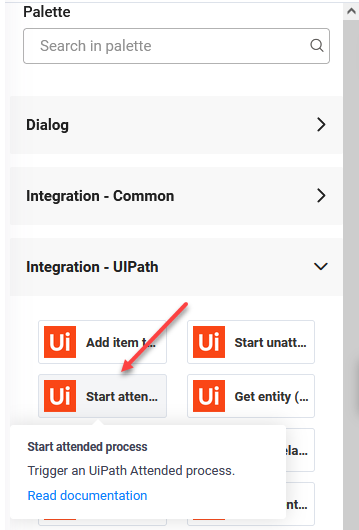
No connector actions or internal actions are needed in order to run the UiPath attended process. All configurations are made within the Flow Designer.
Running a local process and transferring structured data between the chat AI Agent and the UiPath robot can simply be managed by a flow step of type UiPath which uses the Automation: attended (Robot JS) technology.
Prerequisites
- You should have a published UiPath process with input / output arguments.
- If you want to load a process from the Orchestrator, you need to create a UiPath connector app (see Creating the UiPath Connection Strings). Manually configuring a process is also available (see Manually add process).
Step 1. Add UiPath flow step
When you add a flow step of type UiPath to a flow, the flow step automatically has four child steps, providing you with all possible flow exits:
- Request successful. DRUID successfully sends the “Start a job” request to the local UiPath Assistant.
- Error sending the request. An error occurred while DRUID tried sending the request to the local UiPath Assistant.
- After job completes successfully. The job executed the process and completed successfully.
- After job completes with error. An error occurred during the job execution.
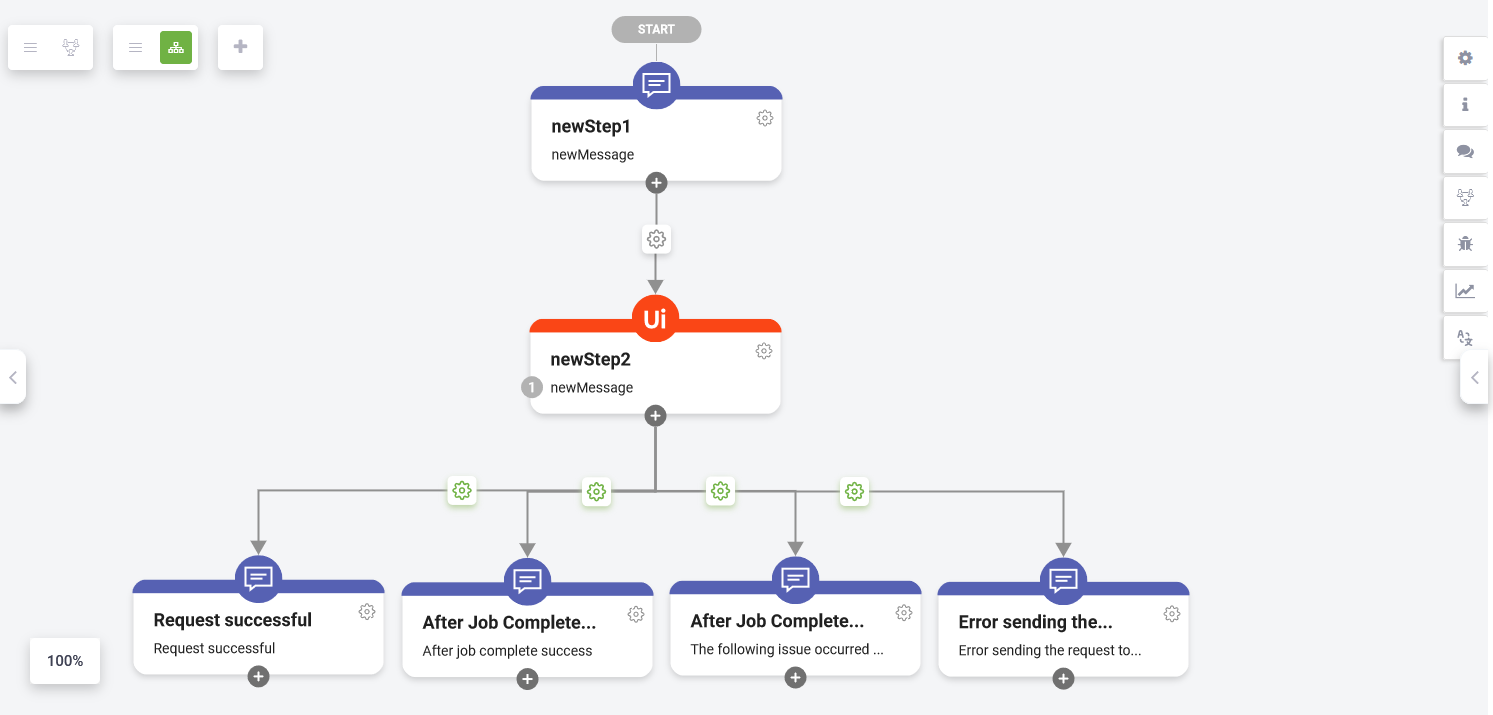
The conditions set on child steps are read-only making the flow configuration simple.
With this new UiPath flow step; there is no need to create a different, dedicated callback flow because the Druid AI Platform knows to resume the flow to the corresponding exit endpoint: either job completes successfully or the job completes with errors.
The events following process job completion can be designed in the same flow from where the process is initiated. After the job completes, the conversation will begin in the same flow, but not from its first step, but directly from one of the two “After job completes…” steps.
Step 2. Configure the UiPath flow step
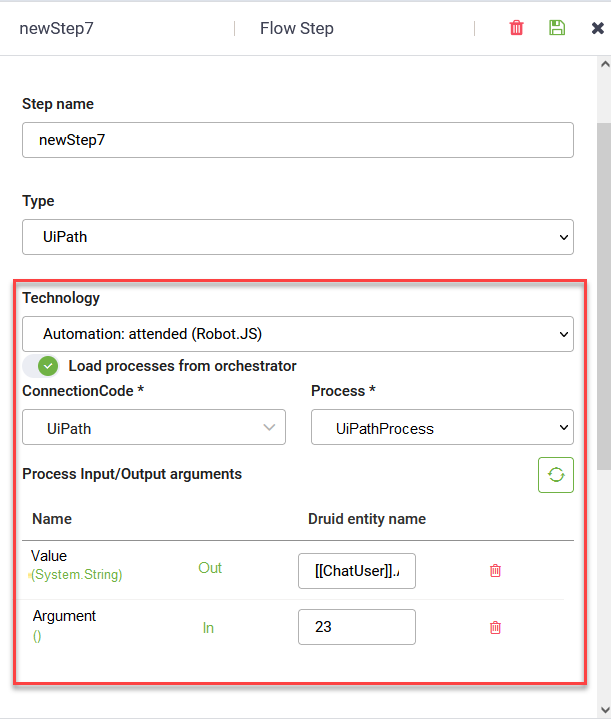
Automation: attended (Robot JS) is automatically selected in the Technology field.
You can load a process from the Orchestrator on your local machine, or you can Manually add process.
Load process from Orchestrator
By default, Load processes from orchestrator is selected.
To load a process from Orchestrator on your local machine, follow these steps:
- From the Code field, select the UiPath connector and from the Process field, select the desired UiPath attended process. The Process field lists all processes in the Orchestrator folder associated to the connector app (connector app specified in the Code field).
- Click the Load button (
 ). The process input and output arguments appear in the table.
- Map the process input and output arguments to DRUID entity fields.
- At the top-right corner of the right editor, click the Save icon (
 ) to save the step configuration.
Manually add process
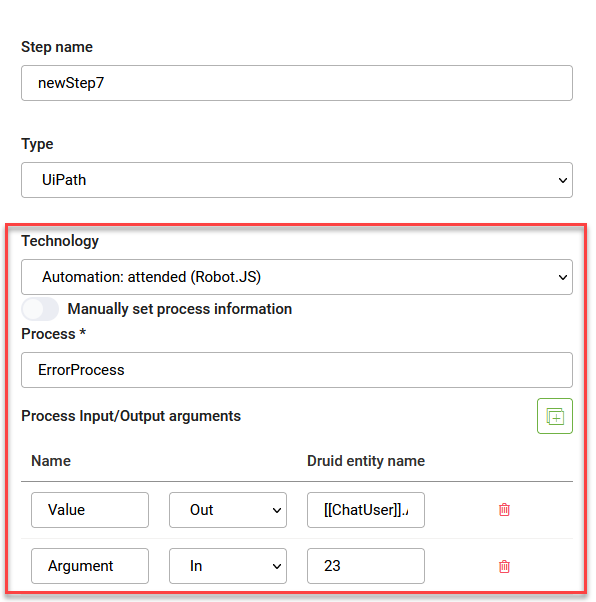
- To manually set process information, tap off Load processes from orchestrator.
- In the Process field, type the name of the process you created on the local machine.
- In the Process Input /Output arguments table, click the Add icon (
 ) and add the process input (in) and output (out) arguments.
- After you add the arguments, select their type (in, out, in / out) and map them to DRUID entity fields.
- At the top-right corner of the right editor, click the Save icon () to save the step configuration.